The IP sites see
After every connection the extension asks which IP the sites see and shows its city, network and speed. The toolbar icon carries the country code.
Connect your browser to AeonProxy residential, mobile, ISP and datacenter proxies in two clicks, or to any proxy of your own. Free and open source.
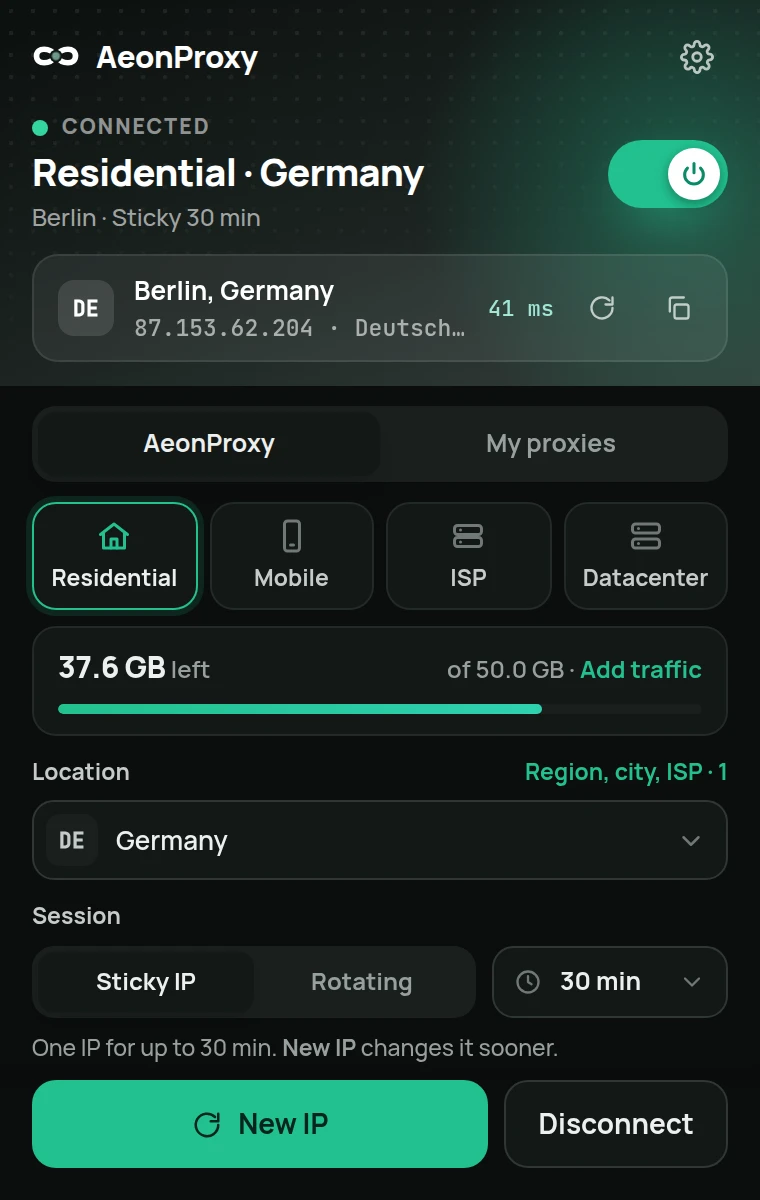
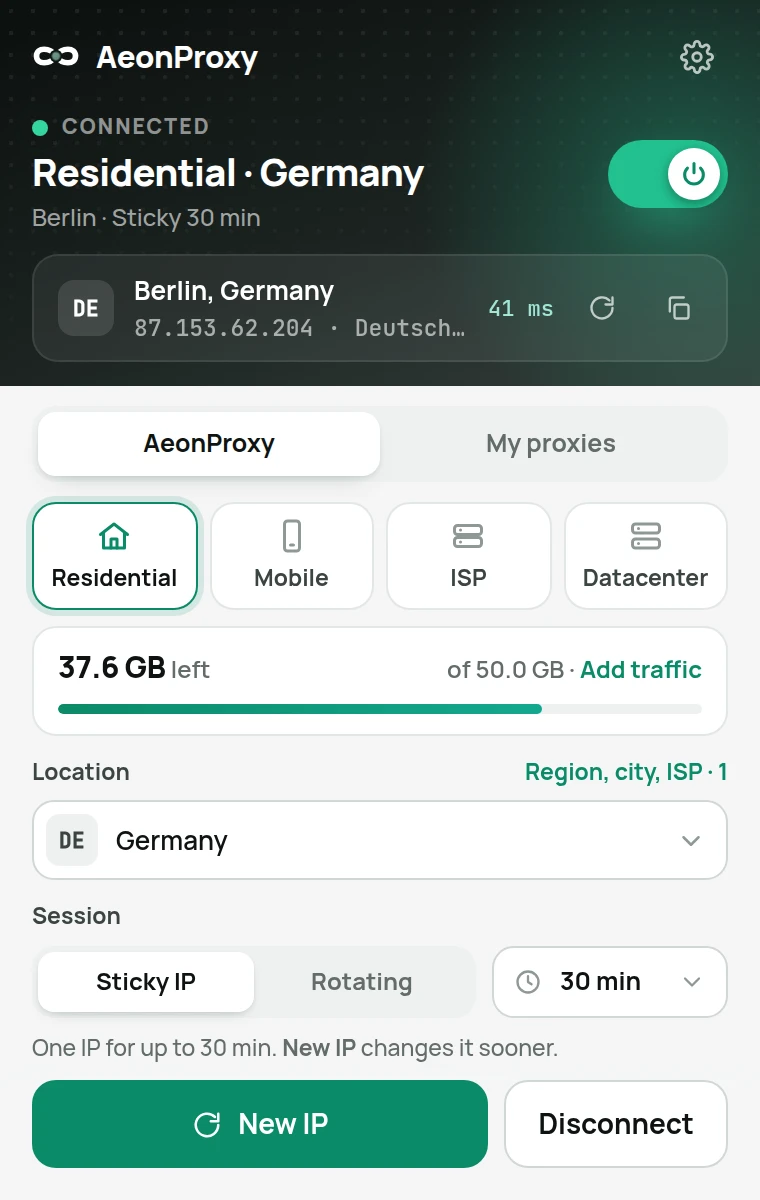
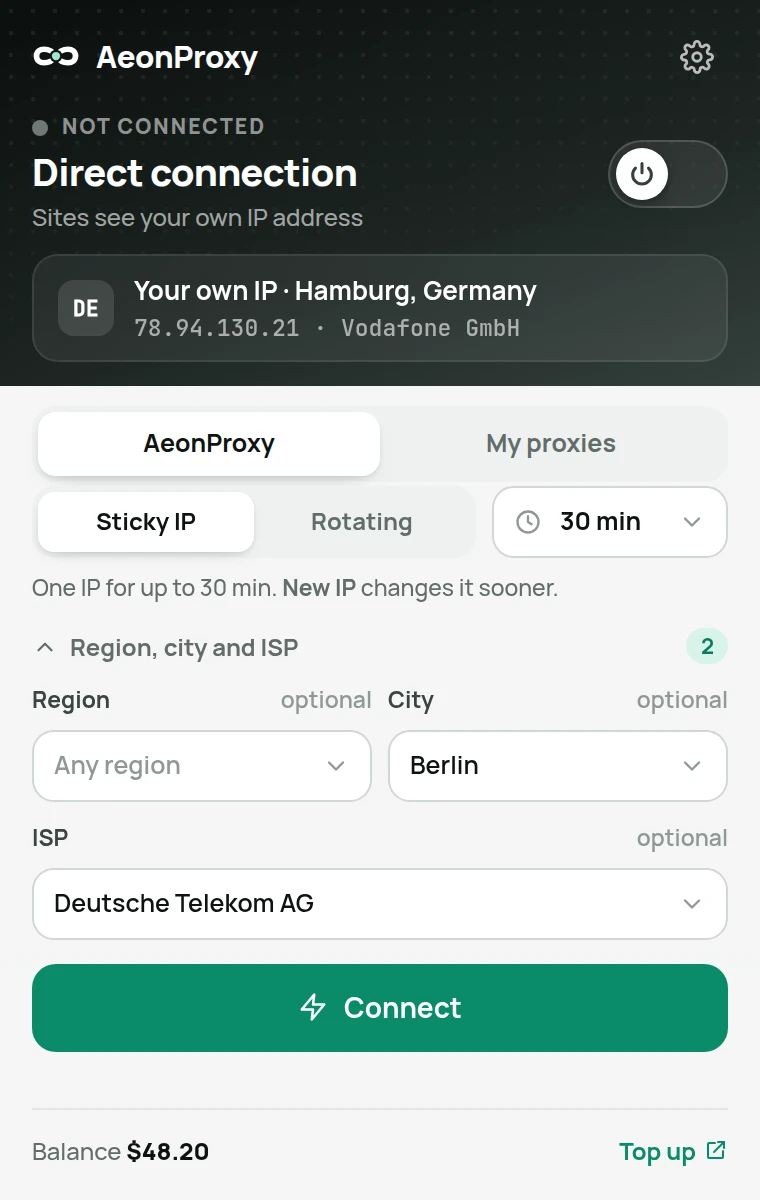
Sign in, pick one of 185+ countries, and add a region, city, ISP or mobile carrier if you need one. Keep one IP from 1 minute to 6 hours, or take a new one for every connection.
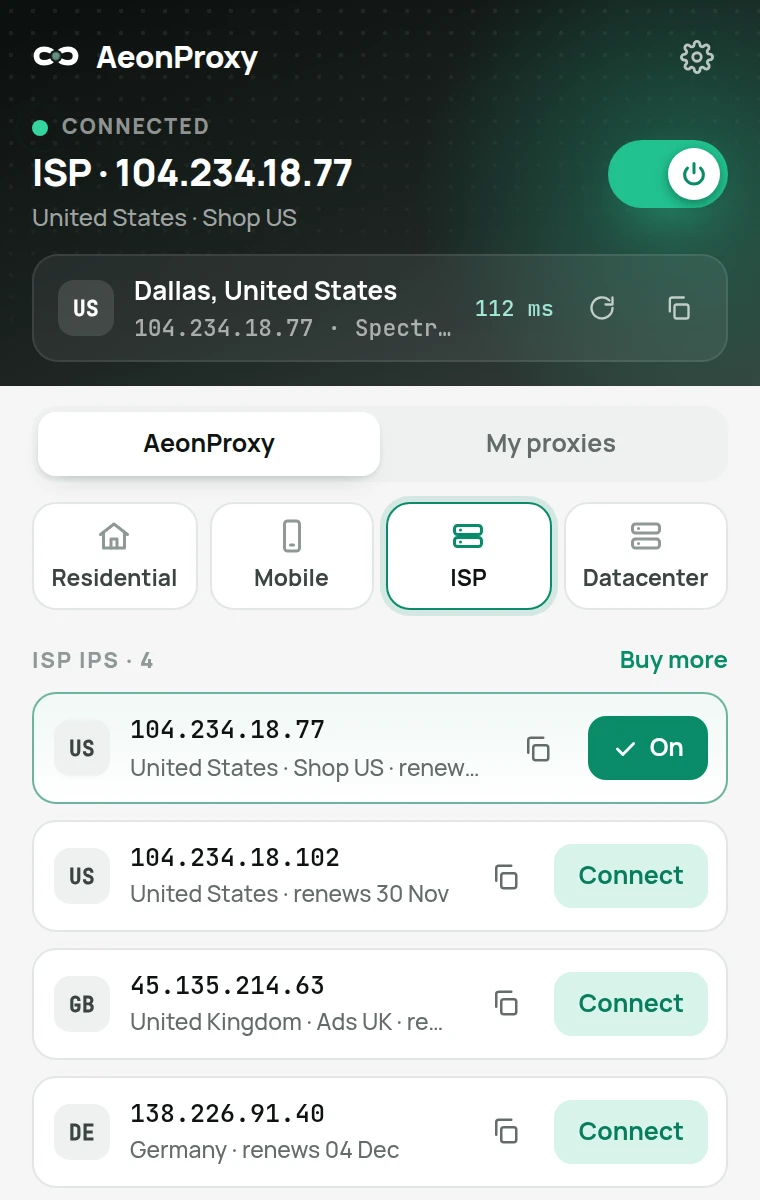
The ISP and Datacenter tabs list the IPs on your account with their country, your label and the renewal date. Press Connect and the browser goes out through that IP, with no host, port and password to copy into settings.
Paste one proxy or a whole list from any provider. The extension reads every common format and keeps your proxies in this browser only; after you use one, it shows its country and speed.
host:port:login:passwordlogin:password@host:porthost:port@login:passwordsocks5://host:port[2001:db8::1]:8080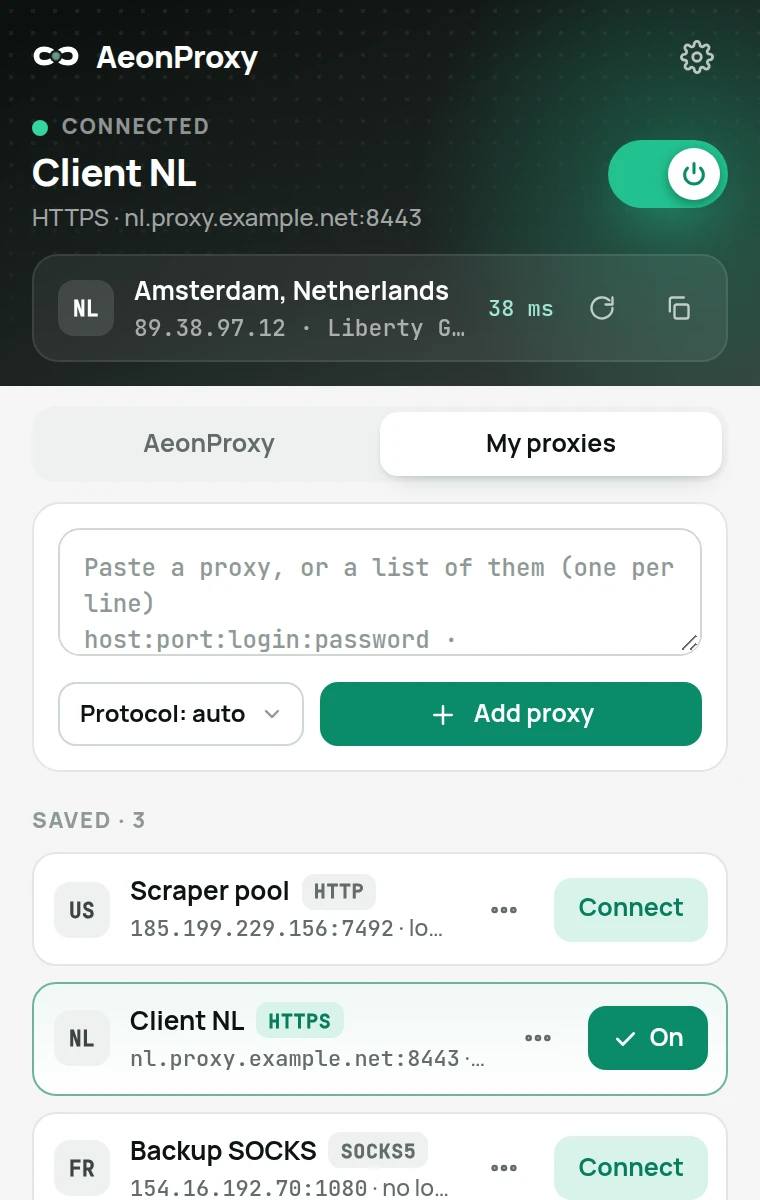
After every connection the extension asks which IP the sites see and shows its city, network and speed. The toolbar icon carries the country code.
On from the start: while a proxy is on, sites cannot read your real IP address through WebRTC. You can switch it off in the settings.
A wrong login, no traffic left, a proxy that does not answer: the extension says which one, with a Top up button when traffic runs out.
About a minute. The same steps work in Chrome, Edge, Brave, Opera and Vivaldi.
Download the zip and unzip it into a folder you will keep, for example Documents. The browser loads the extension from that folder.
Type chrome://extensions into the address bar. In Edge it is edge://extensions, in Brave brave://extensions, in Opera opera://extensions.
The switch is in the top right corner of the page (in Edge, on the left). It lets the browser load an extension from a folder.
Press Load unpacked and pick the unzipped folder. Then pin the extension: the puzzle icon in the toolbar, then the pin next to AeonProxy.
Then click the AeonProxy icon. Sign in to use your AeonProxy proxies, or open My proxies and paste your own. No account yet? Create one.
Antidetect browsers built on Chromium usually add extensions in the profile settings: give them the zip or the unzipped folder.
When a new version is out, the extension puts a dot on its settings button and the settings say which version is new. Download it here, unzip it over the same folder, replacing the files, then press the reload arrow on the extension's card in chrome://extensions. Your proxies, settings and sign-in stay.
Do not remove the extension to update it: removing deletes the proxies saved in it. If you unzip the new version into another folder, the browser treats it as a different extension and your saved proxies stay with the old one.
It changes the browser's proxy setting to the proxy you pick, answers that proxy's login request so no password window appears, and turns on WebRTC leak protection. It does not read the pages you open, your history or what you type on sites.
It talks to aeonproxy.com (sign-in, your account and proxy lines), to check.aeonproxy.com (which IP the sites see, asked through the proxy) and, only when you change the login of one of your own proxies given by a host name, to cloudflare-dns.com to look that name up. Your own proxies never leave the browser. The code is public on GitHub under the MIT license: anyone can read what it does or build it themselves.
Chrome, Edge, Brave, Opera, Vivaldi and other Chromium browsers from version 116, including the antidetect browsers built on Chromium. Firefox and Safari are not supported yet.
Yes. The extension is free and works with proxies from any provider. AeonProxy proxies inside it are paid as usual: residential and mobile by traffic, ISP and datacenter per IP.
No. The My proxies tab works without an account: paste proxies from any provider and connect. Sign in only to use your AeonProxy traffic and IPs.
Click "Sign in with aeonproxy.com" in the extension. It opens our site; sign in there the way you always do and press "Connect the extension". The extension then shows up in Settings → Security, where you can sign it out.
Not yet. Until then install it from the zip as shown above; it takes about a minute.
Chrome has no way to send a login to a SOCKS5 proxy, so use the HTTP port of such proxies. SOCKS5 proxies without a login work. Lines from your AeonProxy account always use the HTTP port.
Yes. In the settings, list the sites that should open directly (your bank, work tools); they see your own IP. Our own site always opens directly, so signing in and loading proxy lists never uses your traffic.